Showing posts with label technology. Show all posts

How Google Classroom Has Changed My Teaching

Hey everyone!

This year I'm fortunate enough to have 1:1 Chromebooks in my classroom. The second week of school they were all ready to go and I jumped into Google Classroom, something I dabbled with last year. It has completely changed my teaching and my classroom.

I set up a main Google Classroom (I'll call it GC from here on out) for my class. I post assignments in there for writing, science, and social studies. I've also posted announcements or links I want students to go to. I used to make a KWL chart, but now they do that on GC.

Then I realized I could change my reading time by also setting up a GC for each of my reading groups. Game changer! I post questions there and we discuss questions. Sometimes they answer them in my guided reading groups. If they don't finish, they can do this at their desk. Oh and let me say, my students chose the names for their reading groups! I just added the graphic at the top lol.
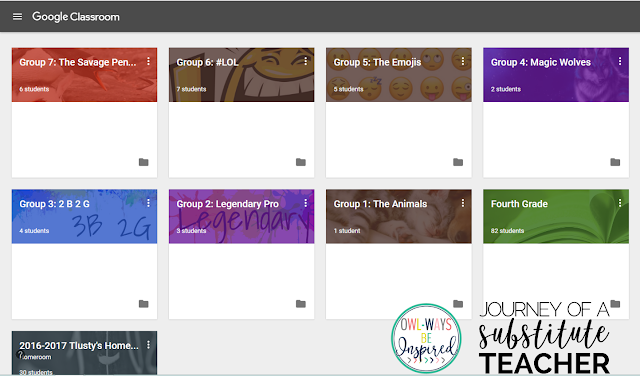

I'm spending less time at copy machines now. In fact, I'm only there for copying homework and for a few other things. I don't have stacks of papers in my class now, just their math tests and some writing. Everything else goes in GC.

I love the fact that I can create one document and with one click of a button, my students all have copies. I love that I can see in live time what they are working on and add comments to their work. That their classmates can add comments. I can quickly see who is done or not done. I can post video links, images, docs, etc.


My students are getting much better at typing. I love that they are becoming so independent and GC is helping with that.

To my amazement, one of my students was home sick, but still did the assignment because it was up in GC. Also the one day I was out sick, I posted almost the whole day's work in GC and the kids were able to run the day smoothly. I could even pop in and see what they were doing.

My plan is to do some blog posts here about some tech tips. Let me know if you have any tips you want to see.


12

Appy Classrooms {Chwazi}

Hi friends!  I've started a series on my blog, Teaching Maddeness, where I share cool apps for the ipad.  It's called "Appy Classrooms" and I thought I would pop over here today and share one that could be used by all teachers!

App Name: Chwazi
It's FREE to download in the app store.  
Here's what you will look for: 

Chwazi isn't meant to be an app for teachers, but you know us teachers....we can adapt anything to use in the classroom, right?!

This is basically a "finger picking" app that was built to see who would pay the tab after dinner with a group of friends, or who will take the garbage out tonight since everyone claims they did it last time. :)

But, it comes in super handy in the classroom for picking students to be leaders or organizing students into different groups.


Here's how it works.  You can select either "fingers" or "groups."  We'll start with "fingers."  With this option, you get to decide how many fingers you want to be selected.  Let's say 8 students all put a finger on the ipad but you're just looking for a line leader.  Then you would select 1, so that one finger would be selected (and that person would be line leader).  Or, if you're looking for 3 people to help with a specific task, you would select 3, so that three fingers would be selected and you would have your helpers.


You can see in this picture, I put three fingers on the ipad to represent three student fingers.  All of the fingers will light up with colors, but since I only selected for it to choose 1 finger we will leave the fingers in place until the one finger is selected.


And.....we have a winner!  What a fun, quick, and random way to select students for specific tasks!

Now, let's take a look at the groups option.


This options is perfect for putting students in pairs or groups.  Let's say you're working on problem solving in math.  You could easily put an ipad at each table of 6 students.  Program it to make groups of 2 and let each student put a finger on the ipad.  Wait until the colors appear and the students with matching colors under their fingers will be partners!  They could even come back after each problem and get new partners.  It's that quick and easy!


You can see that in this picture, the two greens would be partners and the two blues would be partners.

Just a few notes about using Chwazi:


I hope you'll go download this app and try it out!  Do you have ideas of how you might use it in your classroom?  Post them below to share with everyone!

Check out these other #appyclassroom posts:


Do you use cool apps in your classroom?  Share them on Instagram with this hashtag - #appyclassrooms - to connect with other teachers!


2

Classify App {Plants & Animals}


I am always on the lookout for engaging, educational apps for my classroom and when I can find one for FREE, well, that's a extra bonus!  I'm here today to share one of our favorites with you!  If you have some to share, post them on Instagram with the hashtag #appyclassrooms so other teachers can find them!

This app, called Classify, is perfect for any classroom that teaches plants and/or animals.  Here's a brief peek at how the app works.


There are three levels.  I start my students on Level 1 - it's not TOO easy, so it's perfect for them.  Students will start on Level 1 and as you can see, they will have to unlock other levels.  If students reach a certain score, they will unlock the next level and can move on.  However, the ultimate goal is to "master" a level to earn the Creature Card for that level.  You can see in the picture above, that I have unlocked Level 2, but have not mastered it yet.


Here's a peek at the first board in Level 2.  Students will be looking for "living things that are mammals."  They will grab the red circle and swipe it to the right to flip over the cards on the gameboard.


Once cards are flipped over, students will simply click on all of the cards that fit the category.  If they click on a card and change their mind, they simply click again to deselect it.


Cards that are selected change colors, so students can review their answers before hitting the classify button to submit their answers.


After submitting their answers, students are immediately able to see which were correct (green check) and which were incorrect (red x).


Then, it calculates their score.  They have a chance to replay it (if it wasn't mastered, this would need to be done to earn the creature card for that level), or go to the next board.


From the home screen, students can view their collection of creature cards.  They love to tell others when they've earned a new card!

I hope this is an app that you can use in your classroom!  It's FREE, easy to navigate, engaging for students, and educational at the same time!  That makes for #appyclassrooms!


1

Technology in the Class: Plickers

Hey everyone!

I've seen other teachers post about this lately and I am here to say that I love Plickers too!

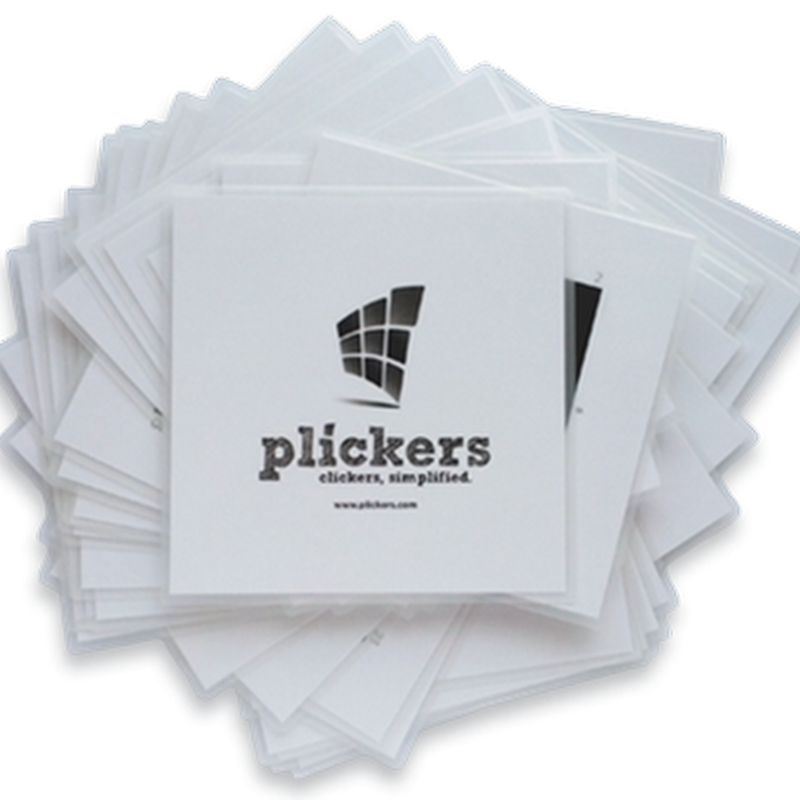
I created my class list and printed out the Plickers cards for my class. Whomever last used the copy machine left green paper in it, so now my Plickesr cards look like something from Minecraft lol. It actually makes them easier for the kids to find, so it was a happy mistake.


I put all of the kids' names on the backs. This one happens to be mine, because I wanted to be part of the fun too!

I wanted to start off easy, to get the kids used to this. The first question was what was their favorite color, next was favorite specials, do you like math, and then favorite flavor of ice cream.

All they had to do was rotate their paper to either A, B, C, or D, and then I used the free app on my phone to scan their cards.

I love that their name pops up with the letter choice right there! And then I could could use my app to just swipe to the question from my phone and presto, it changed on the computer!

There are two nice features with this program. You can see who hasn't voted where it says "students" , or you can have it on graph, like on the picture below. If it's something that you want to have a correct answer, you can program that in too and then reveal the correct answer after all kids have entered their answer.


And I had 6 kids absent this day (day before their spring break!)
I plan on using Plickers for math or reading questions. A quick way to assess students and a great way for me to save data, paperless! I can't wait to see how this turns out for the rest of the school year too. I'd have to say that at conferences, 98% of my kids included this in their conference, because they loved it so much.


3

ChatterPix {Quick & Easy Technology Integration}

I just wanted to pop by and show you my new favorite app!  It's one that could easily be used with only one ipad in the classroom and it definitely works as a motivator for the kids!

It's called ChatterPix Kids and it's FREE!


Basically, it gives a voice to pictures! Take a look below to see some of the fun ways we're using it in our classroom!

Biography Snippets {Reading}


Animal Fun Facts {Science}


Persuasive Writing


Is your brain turning yet??  How would YOU use this app in your classroom?  What pictures would your students want to bring to life to talk?

If you want to see a step-by-step post on how to use this app (it's super easy!), click here.


1

Online Thanksgiving Resources

Halloween is so last week.  It's time for Thanksgiving!  I'm Megan from I Teach. What's Your Super Power? Today I've got some awesome online Thanksgiving resources to share with you.

The First Thanksgiving from Scholastic

Become a history detective and find out what really happened the first Thanksgiving with this activity from Plimoth Plantation.

Become the captain of the Jamestown colony on The Jamestown Online Adventure.

Brain Pop Jr. (Free video!) or BrainPop (subscription needed)

You can find lots of short Thanksgiving videos on History.com's Thanksgiving page.

When you're done learning and just want to have a little fun, try these sites:


Funny Thanksgiving Fill In from National Geographic Kids


Hope you have a wonderful Thanksgiving!

1

Have you heard of Ten Marks?

Hi all! I am Jessica Hursh from The Teacher Talk. I am a new 'owl' here at Owl-ways Be Inspired. I am beyond excited to be joining these bloggers - little do they ALL know... I have been in awe over them ever since I've began my blogger & tpt journey - so, the fact that I am joining them & get to collaborate with them... I am just beside myself. 

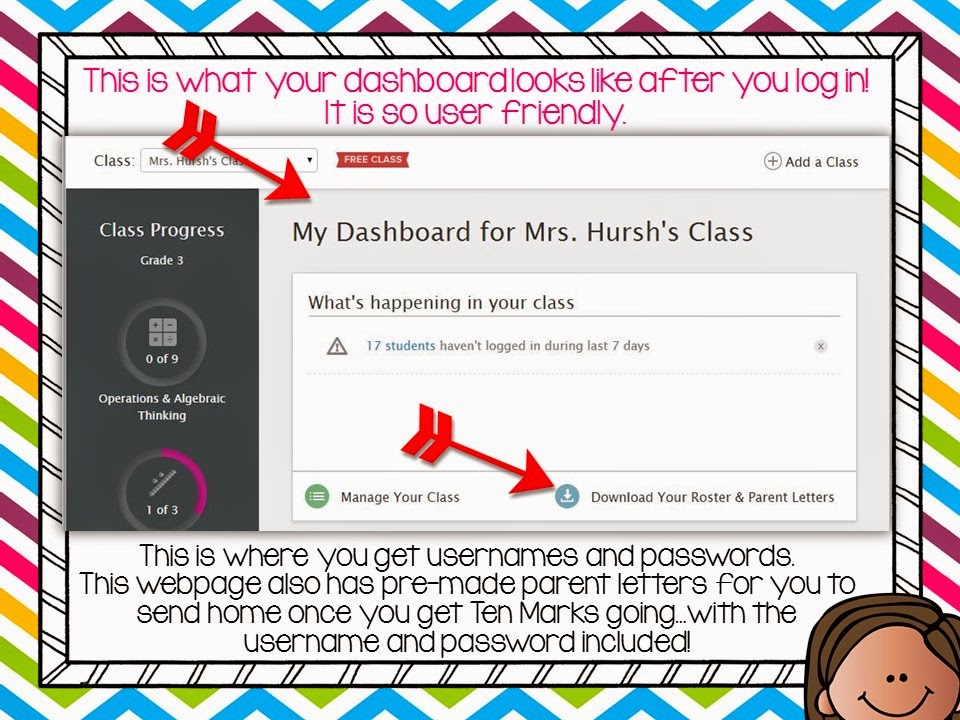
Now, have you ever heard of Ten Marks? I hadn't!! When a colleague of mine told me about it and told me that it was totally free... my jaw about hit the floor! "What do you mean I can assign in class work or homework to students that is directly correlated to the standard I'm teaching... &... I don't have to grade it .... & it tracks their progress?" That exists? OH. YES. IT. DOES.! It's called Ten Marks.

I am using this webpage to assign homework to my students once we grasp a skill in the classroom. 

Here is a peek at Ten Marks:


Each time I assign a homework assignment, I send home these little notes:


1

Technology Resources to Celebrate President's Day

Happy President's Day Week! Stephanie from 3rd Grade Thoughts here and I hope you've been enjoying all of the great resources so far to help your students learn even more about this holiday. I'm excited to share some fantastic President's Day technology resources for you to use with your students as soon as today!


BrainPOP, Jr.

Even if you're not a subscriber, BrainPOP and BrainPOP, Jr. have some fantastic free resources for you to use! I highly suggest BrainPOP, Jr.'s free video on Abraham Lincoln for a quick biography of Lincoln's life with a mention of President's Day.


At the bottom of the video, there are loads of activities for you and your students, including quizzes, an interactive word wall, book suggestions, and a stovepipe hat craft!


Click HERE or any of the pictures above to be taken to the video.

Interactive Tours of The White House

If you've ever seen Google Street View, you know how cool the 360* view can be! Fortunately, they have toured The White House and share it HERE for you and your students to see!


Not only can you see this beautiful home from all angles, there are links below of famous artwork that will take you to their specific spot in the room. Highly informative and interactive!

The other interactive tour is filled with more fun facts and videos to show the different highlights of the home. It can be found HERE:


President for a Day!

I had so much fun with this game and I know your students will, too! PBS offers the chance for you to go through a day as the president in a "choose your own adventure" style and follows up each choice with how past presidents have done it-- pictures and facts included!


The game is personalized at the beginning with a few simple questions and at the end of the day, you get your own newspaper cover story :)


It is too much fun and really gives you a sense of the variety of meetings and obligations a president has on a daily basis.

Presidential Trading Cards

Also on PBS' site are ten Presidential Trading Cards to print and fill in. There are answer keys and even a Teacher's Guide for how to use them for a "Who Am I?" game. Find these cards HERE:


Duck For President on YouTube

I *love* this book and will always share it during election year, but it fits in perfectly around President's Day, too. If you don't have access to the book, or would like to spruce up your Read Aloud time, there is a nicely-done video of the book below.

*Note that it is hosted on YouTube, which is sometimes blocked by districts.


I hope these resources gave you some ways to integrate technology as you teach about presidents this week!


Do you have any other favorite technology resources for this holiday? Share them below in the comments!


1
Back to Top